
On‑device IPA signing
Sign any IPA directly on iPhone or iPad. No Mac, no Windows PC, no Xcode.
ESign is a free on‑device IPA signer for iPhone and iPad. Import your certificate, sign any IPA and install it in seconds, with no jailbreak and no computer after setup.
Tap Install to put ESign on your iPhone or iPad, or grab the IPA to sideload it yourself.
Everything to know before you install
| App name | ESign |
|---|---|
| Latest version | 5.0.2 |
| File size | 7.1 MB |
| Requires | iOS 11.0 or later |
| Works on | iPhone, iPad, iPod touch |
| Category | IPA signer & installer |
| Jailbreak | Not required |
| Price | Free |
| Last updated | February 2026 |
Pick your iOS version to see compatibility and the best way to install. Find it in Settings › General › About.
Prefer installing with a computer or TrollStore?
Every iOS app has to carry a valid Apple signature before the system will open it. The App Store handles that for you. ESign lets you do it yourself: it takes an IPA file (the package format for iOS apps), re‑signs it with a certificate you provide, and installs the result straight to your home screen.
That makes it the go‑to replacement for the old Cydia Impactor workflow. You don’t need a Mac, iTunes, or a jailbreak, just an iPhone or iPad running iOS 11 or later and a signing certificate.
Once ESign is set up, everything from downloading to signing and installing happens on the device itself.
Use your own Apple Developer certificate so the apps you install stay yours and keep working for up to a year.
Install open‑source tools, emulators, beta builds, region‑locked or self‑built apps that Apple’s store doesn’t carry.
ESign packs a full signing toolkit into a download of under 10 MB. Here’s what you can do with it.
Sign any IPA directly on iPhone or iPad. No Mac, no Windows PC, no Xcode.
Store multiple .p12 and .mobileprovision pairs, check expiry dates and switch between them in a tap.
Queue several IPAs and sign them together with one certificate instead of one at a time.
Add .deb, .dylib or framework tweaks to an app while signing. No jailbreak required.
Change the display name, icon, bundle ID and version, or remove device restrictions before installing.
Give a copy a new bundle ID to run two versions of the same app side by side.
Download, unzip, zip and inspect files. A text and hex editor is included for quick edits.
Add repository URLs to browse, download and sign apps from inside ESign in one flow.
A clean interface that follows your system theme, localized for users around the world.
A clean, native iOS interface. Everything is one or two taps away.
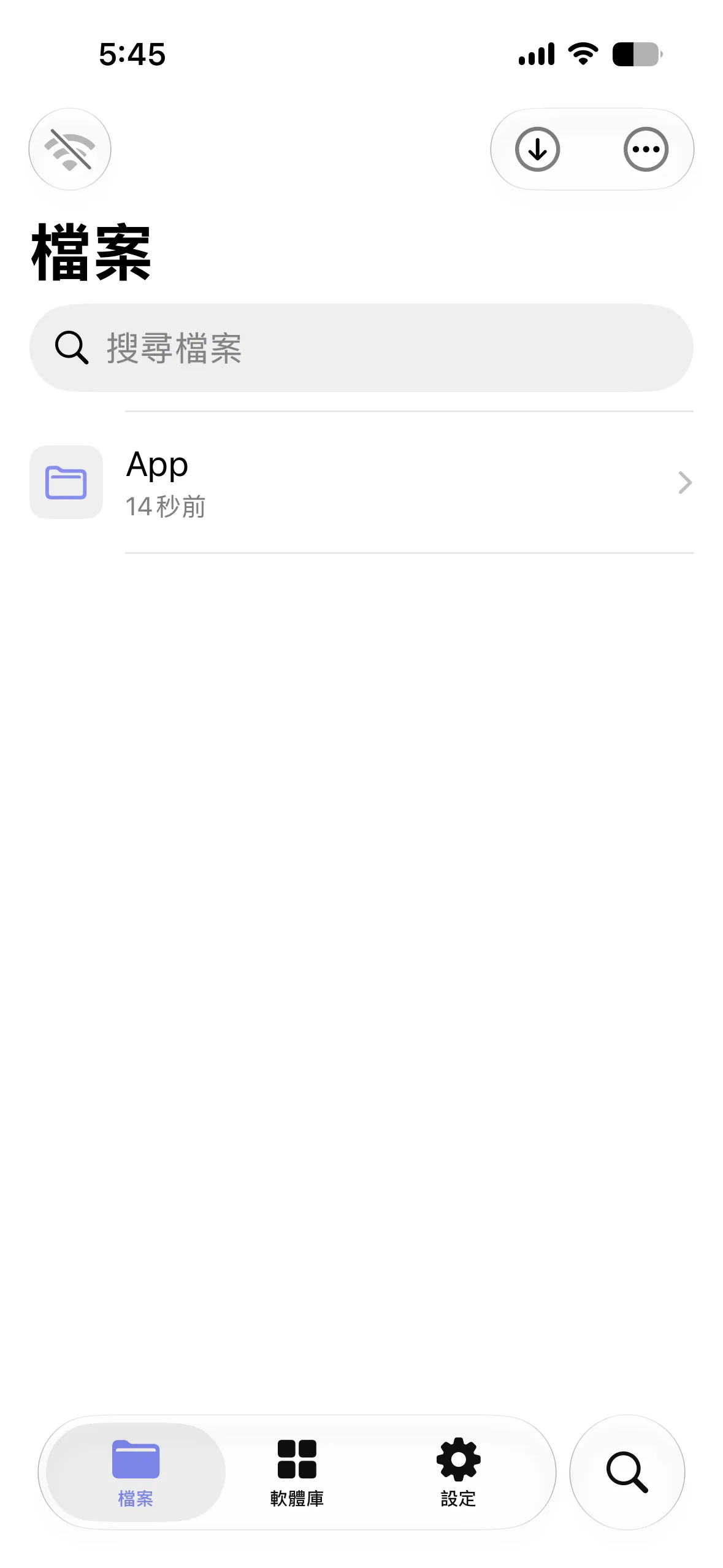
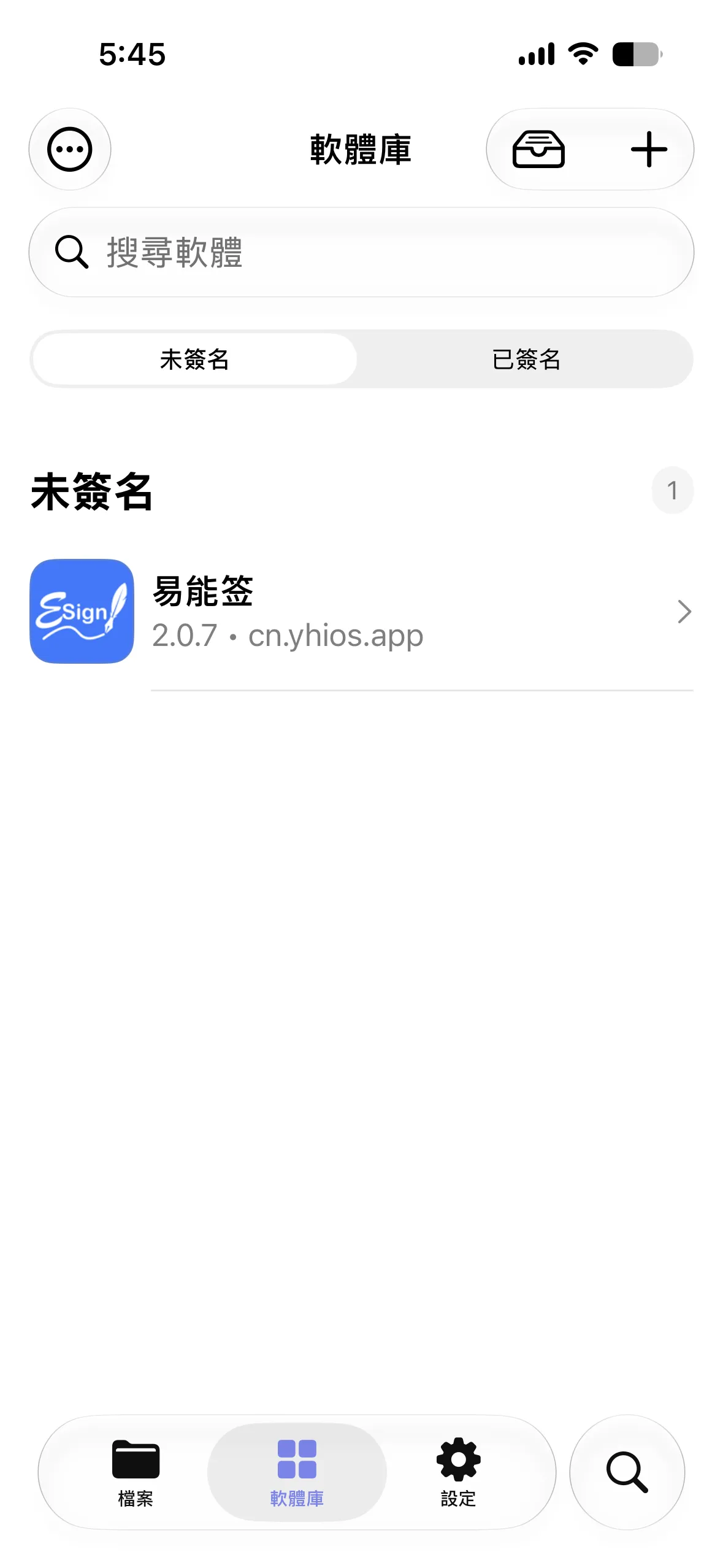
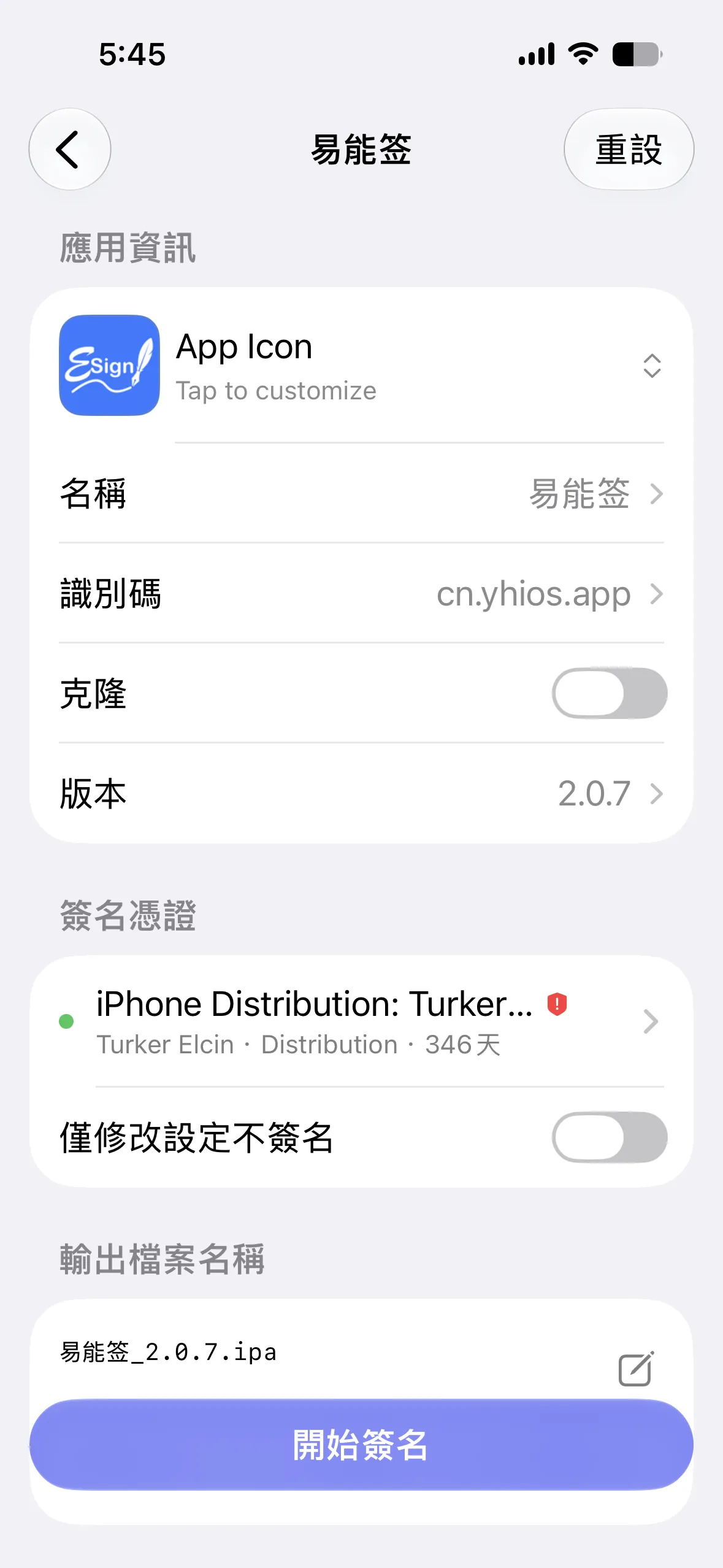
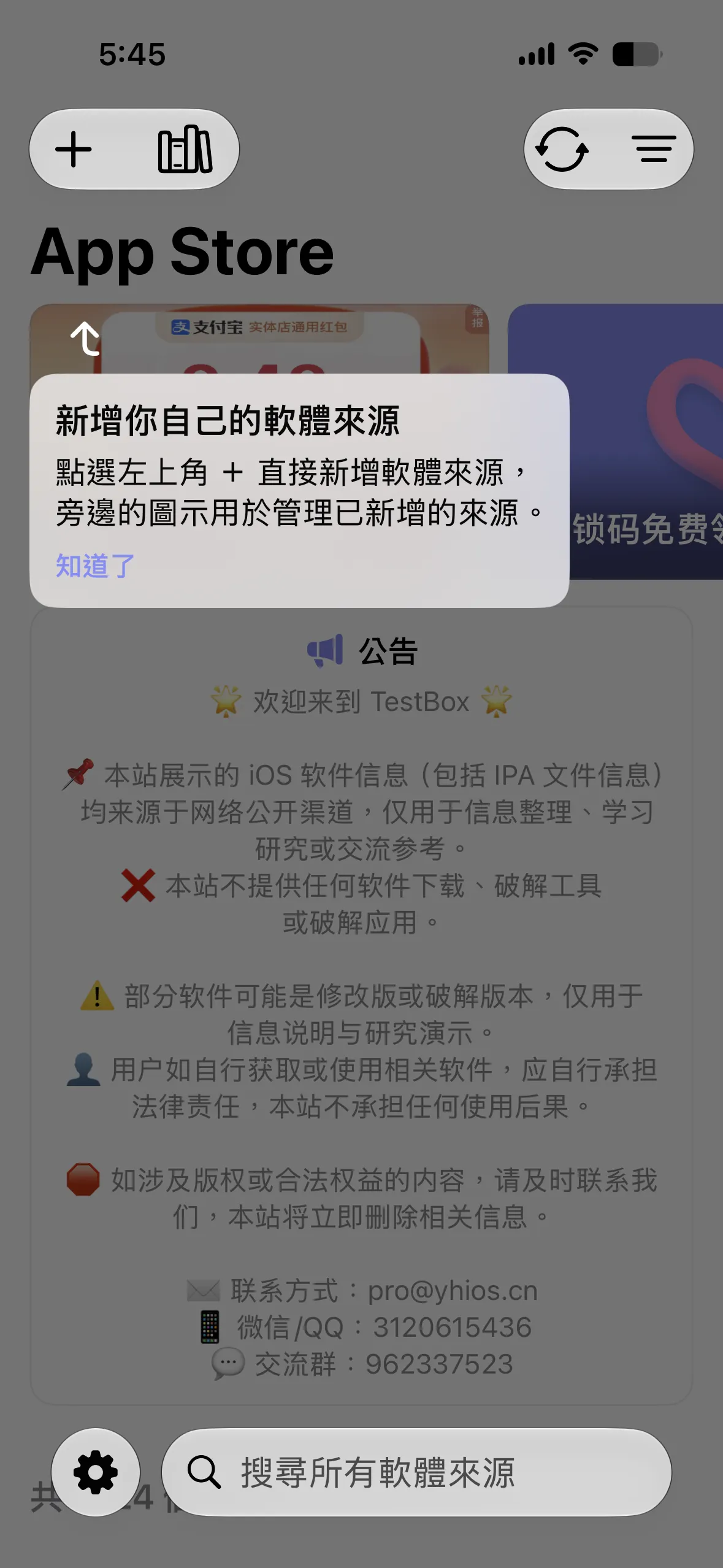
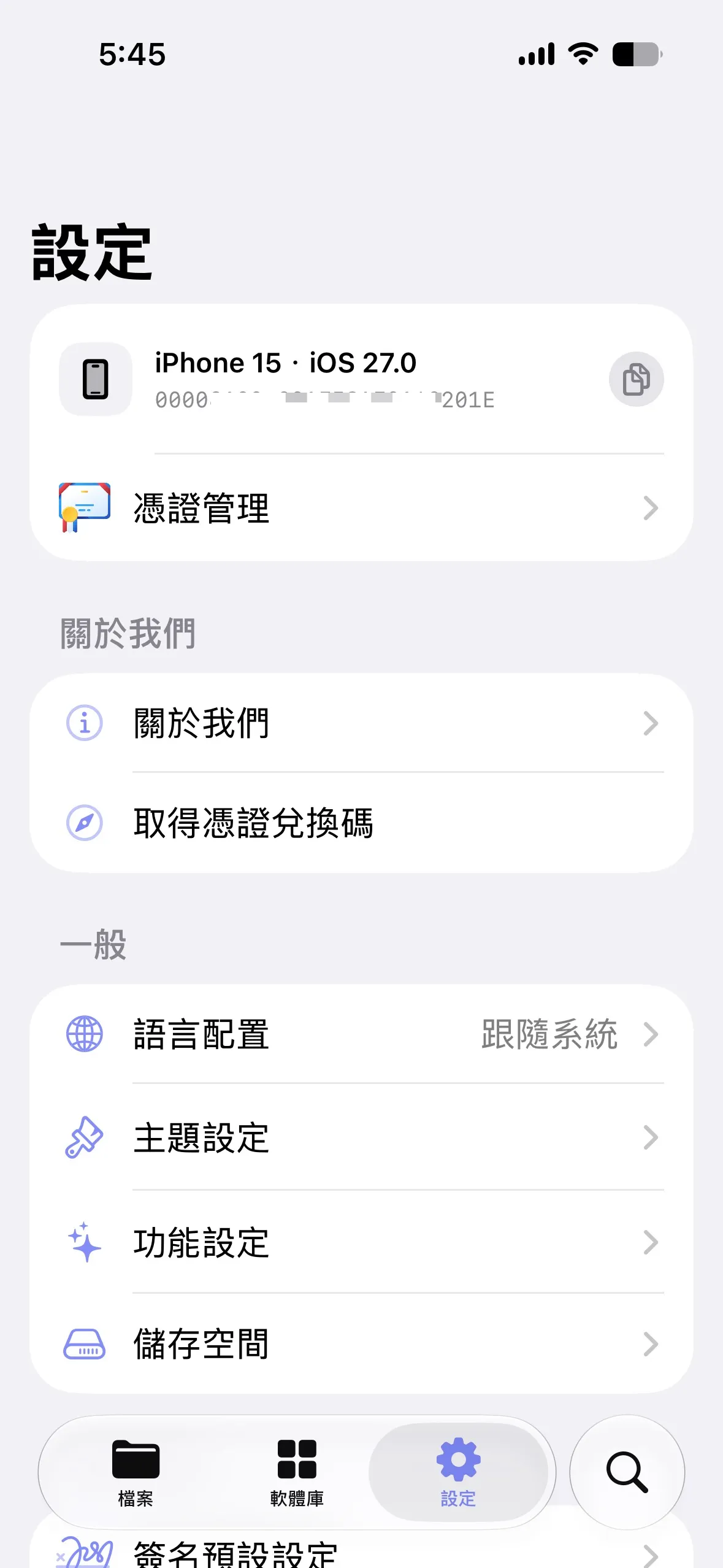
Five quick steps, right on your iPhone or iPad. No computer needed.
Tap Install on the latest version above, then confirm.
Head to your Home Screen while the icon loads.
Tap the ESign profile, then Trust.
Settings › General › VPN & Device Management
iOS 16+ only. Turn it on and restart.
Settings › Privacy & Security
Tap your .p12 in ESign, enter the password, Import.
That’s it. ESign is ready to sign and install IPA files.
Free Apple ID installs last 7 days. A paid developer account lasts 1 year.
Free Apple IDs are limited to 3 active sideloaded apps, including AltStore.
Only works on TrollStore‑supported iOS versions. Avoid updating iOS if you rely on it.
 ESign certificates
Every app you install with ESign is signed with a certificate. Which one you use decides how long your apps keep working. Here’s how the three options compare.
Free
Posted publicly as a .p12, .mobileprovision and password. Import it into ESign and start signing straight away.
Low yearly fee
Sold by certificate providers. Your device is added to a developer account, so the certificate is used by far fewer people and stays valid much longer.
$99 / year
Enrol in the Apple Developer Program, create a distribution certificate and a provisioning profile with your UDID, then export them as .p12 and .mobileprovision.
ESign needs two files to sign apps: a .p12 certificate (your private signing identity) and a matching .mobileprovision profile (the list of devices and permissions it covers). Import them once and reuse them for every app.
.p12 and .mobileprovision, to the Files app (unzip them first if they came as a .zip)..p12 file and choose Import. Do the same for the .mobileprovision file..p12 file and tap Share..mobileprovision file.With your certificate imported, any IPA goes from file to Home Screen in under a minute.
Something went wrong?A source (or repo) is a link to a list of IPAs that ESign can browse. Once added, you can search, download and sign apps without leaving ESign. Most sources use the same JSON format as AltStore, so developer repos for open‑source apps and emulators work out of the box.
https://apps.altstore.io
https://community-apps.sidestore.io/sidecommunity.json
https://alt.getutm.app
https://altstore.oatmealdome.me
https://provenance-emu.com/apps.json
https://flyinghead.github.io/flycast-builds/altstore.json
https://pokemmo.com/altstore/
https://appfair.net/altstore.json
https://theodyssey.dev/altstore/odysseysource.json
They all install IPAs without a jailbreak but solve different problems. Many people use two together, like Sideloadly to install ESign once, then ESign for everything else.
| Feature | ESign | Sideloadly | AltStore | TrollStore |
|---|---|---|---|---|
| Install apps without a computer | Yes | No | Needs AltServer | Yes |
| Jailbreak required | No | No | No | No |
| Signs with | Your p12 certificate | Apple ID | Apple ID | No signing needed |
| How long apps last | Until cert expires (≤ 1 yr) | 7 days free · 1 yr paid | 7 days, auto‑refresh | Forever |
| Tweak injection | Yes | Yes | No | No |
| Batch signing | Yes | No | No | No |
| App limit | None | 3 (free Apple ID) | 3 (free Apple ID) | None |
| iOS support | iOS 11+ | Most iOS versions | iOS 14+ | iOS 14.0 – 16.6.1, 17.0 |
ESign works on any iPhone, iPad or iPod touch that can run iOS 11 or later, including the newest iOS 26 releases.
 iOS 26
 iOS 18
 iOS 17
 iOS 16

Every iPhone that runs iOS 11 or later: iPhone 5s, SE (all generations), 6 / 6s / 7 / 8 series, iPhone X, XR, XS, and iPhone 11 through the latest iPhone 17 lineup, including Pro, Pro Max, Plus and Air models.
iPad (5th generation and newer), iPad mini 2 and later, iPad Air 1 and later, and every iPad Pro model running iPadOS. M‑series iPads are fully supported.
iPod touch 6th and 7th generation. They are capped at older iOS versions, so Sideloadly or a certificate‑based install works best.
Most ESign problems come down to the certificate. Find your error message below for the quick fix.
The certificate is revoked or doesn’t include your device’s UDID. Re‑sign with a valid certificate registered to your device, free up some storage, and download the IPA again in case it was corrupted.
Apple has revoked the certificate ESign was signed with. Delete the app, then reinstall it with your own certificate, Sideloadly or TrollStore. Your signed apps will need re‑signing with a valid certificate too.
Go to Settings › General › VPN & Device Management, tap the developer profile under “Enterprise App” or “Developer App”, then tap Trust.
On iOS 16 and later, open Settings › Privacy & Security › Developer Mode, switch it on, restart, and tap Turn On when the device boots.
iOS couldn’t confirm the signature. The certificate was usually revoked or expired. Install again with a valid certificate. Make sure the date and time on the device are set automatically.
Try signing without injected tweaks, since an incompatible tweak is the usual cause. Some apps also need entitlements (iCloud, push notifications, app groups) that your certificate doesn’t include.
Double‑check the password (it’s case‑sensitive), and make sure the .p12 and .mobileprovision come from the same certificate. Expired certificates will also fail to import.
Apps signed with a free Apple ID expire after 7 days. Re‑sign them before then, let AltStore refresh them automatically, or use a paid developer certificate that lasts a year.
Can’t find your answer? Email us and we’ll add it to the guide.
ESign is an IPA signer and installer for iPhone and iPad. It re-signs IPA files with your own certificate and installs them on your device, so you can sideload apps without a jailbreak or a computer.
Yes. The ESign app is free to download and use. The only cost you may have is the signing certificate: an Apple Developer Program membership or a certificate from a provider.
ESign itself only signs and installs the files you give it. Safety depends on where your IPA files and certificates come from. Download ESign from a source you trust, use your own certificate rather than a public shared one, and only install apps from developers you trust.
No. ESign works on stock iOS. It relies on standard Apple code signing, so your device stays unjailbroken and keeps receiving updates.
Yes. With a signing certificate that includes your device UDID, you can install ESign directly from Safari. If you only have a free Apple ID, you need a computer once to install it with Sideloadly or AltStore.
Yes. ESign supports iOS and iPadOS 26 as well as every version back to iOS 11. On iOS 16 and later you may need to turn on Developer Mode in Settings › Privacy & Security.
Apple revokes a certificate when it detects it being shared, and every app signed with it stops opening. Free certificates are revoked most often. A paid certificate registered to your UDID or a TrollStore install keeps your apps working much longer.
Free ESign certificates are shared publicly and posted as a .p12 file, a .mobileprovision file and a password. Because many people use the same certificate, Apple revokes them regularly, so expect to import a fresh one every so often. Paid certificates registered to your UDID last up to a year.
The .p12 file contains your signing certificate and private key, protected by a password. The .mobileprovision file lists which devices and app capabilities that certificate covers. ESign needs both to sign apps.
Yes. When signing an app, you can add .deb, .dylib or framework files. ESign injects them into the app, so you can use many tweaks without a jailbreak.
Yes. ESign runs on iPad and iPadOS the same way it does on iPhone, including M-series iPad Pro and iPad Air models.
Yes. Sideloading apps onto your own iPhone or iPad is legal, and ESign simply signs and installs the IPA files you choose. Make sure you follow the licence terms of the apps you install.
Download ESign 5.0.2, import your certificate, and install any IPA in under a minute.